Setup Guide
Follow these simple steps to set up your premium VPN on iPhone, iPad, or Mac.
Click to watch the guide video
Download Configuration
Log in to your account, ensure you have an active plan or trial, and download your personal configuration file from theProfile > VPNtab.
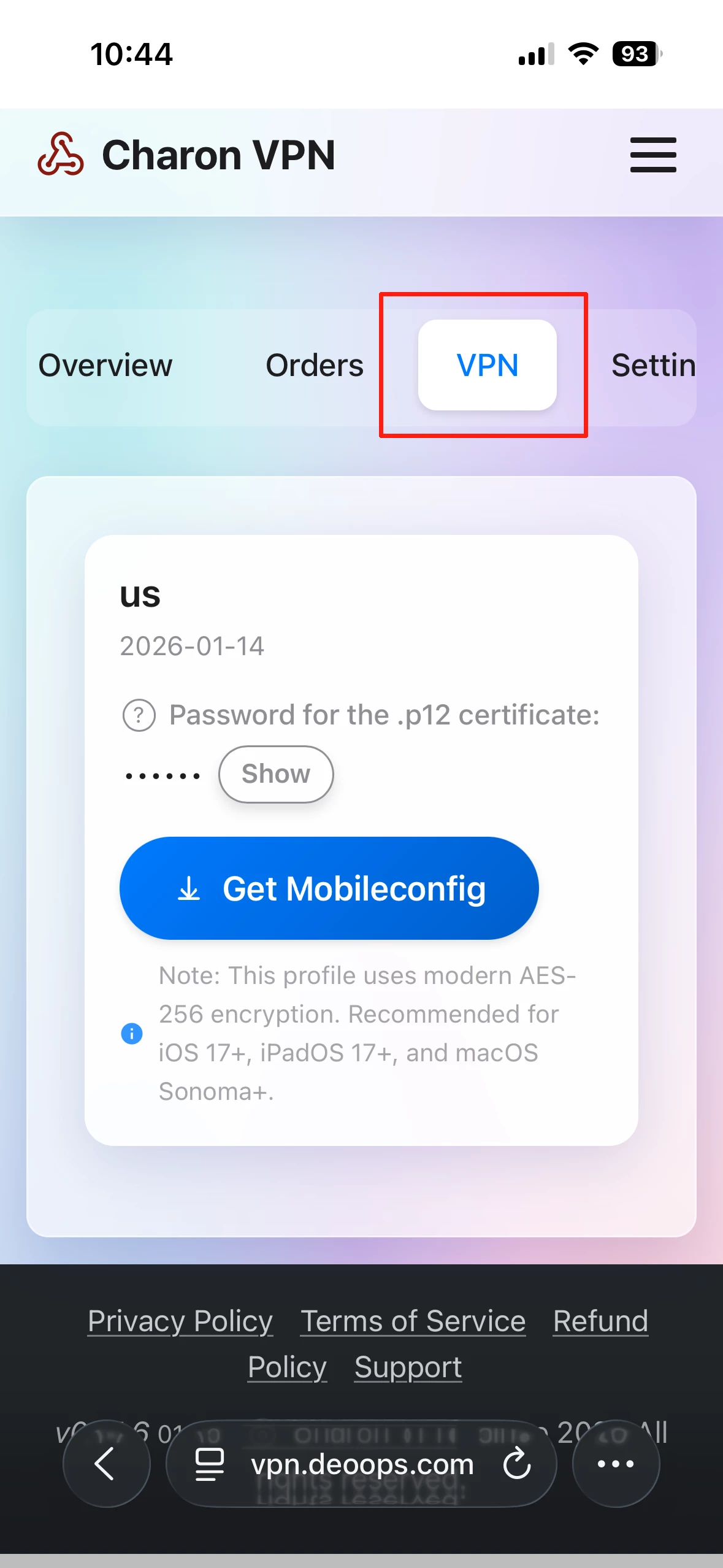
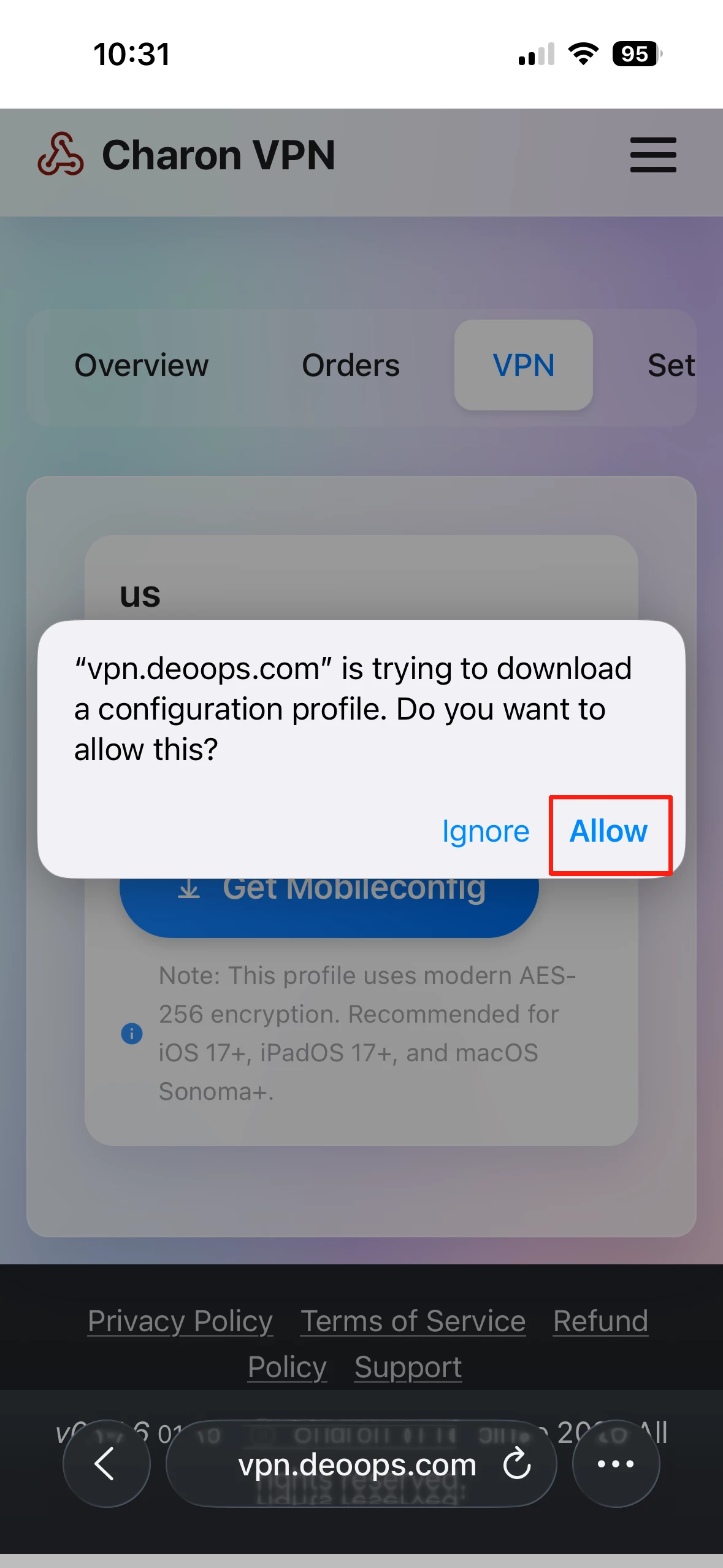
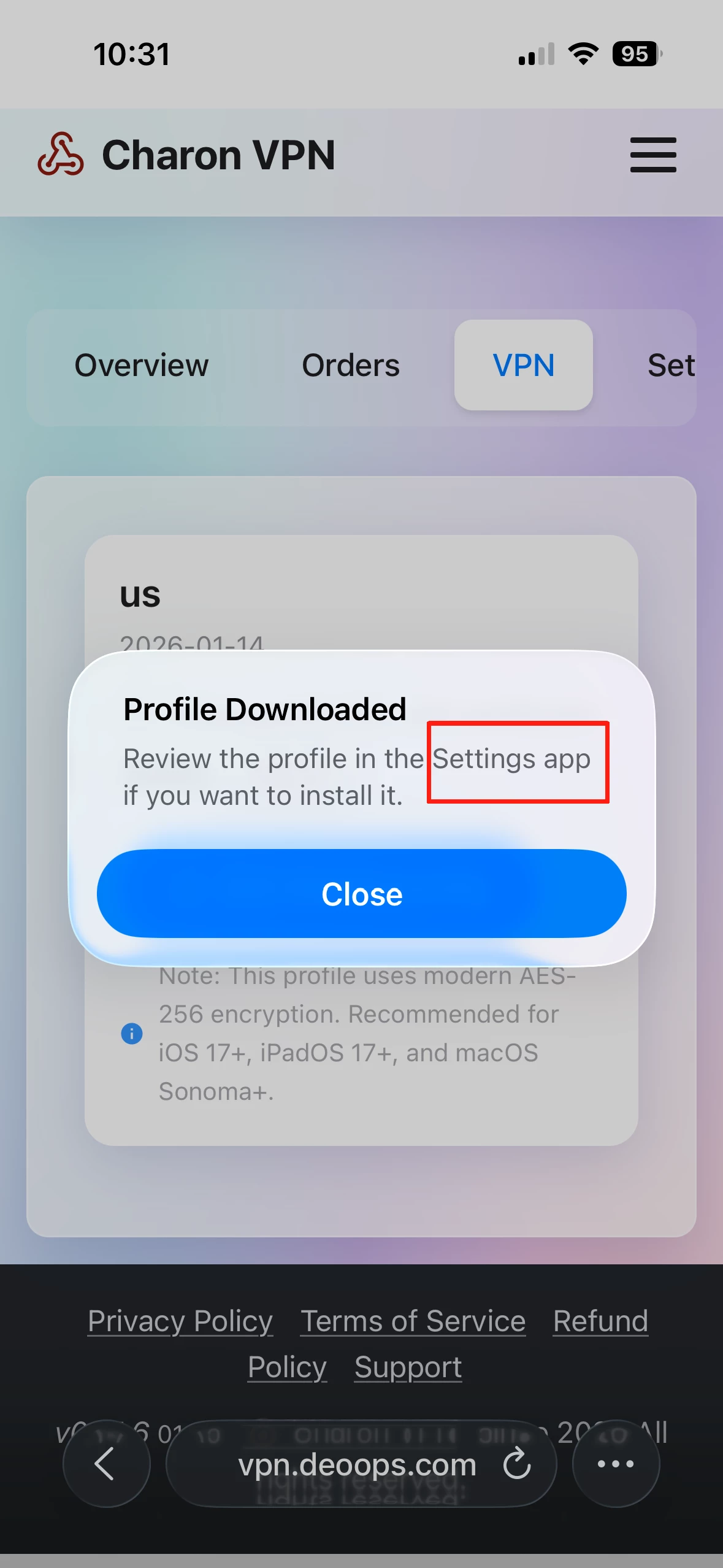
Log in, tap 'Get Mobileconfig', allow the download, and close the completion prompt.
Start Installation
Once the download finishes, the installation won't start automatically:
- Open theSettingsapp
- Tap on theProfile Downloadedbanner
- TapInstall, then enter your device passcode.
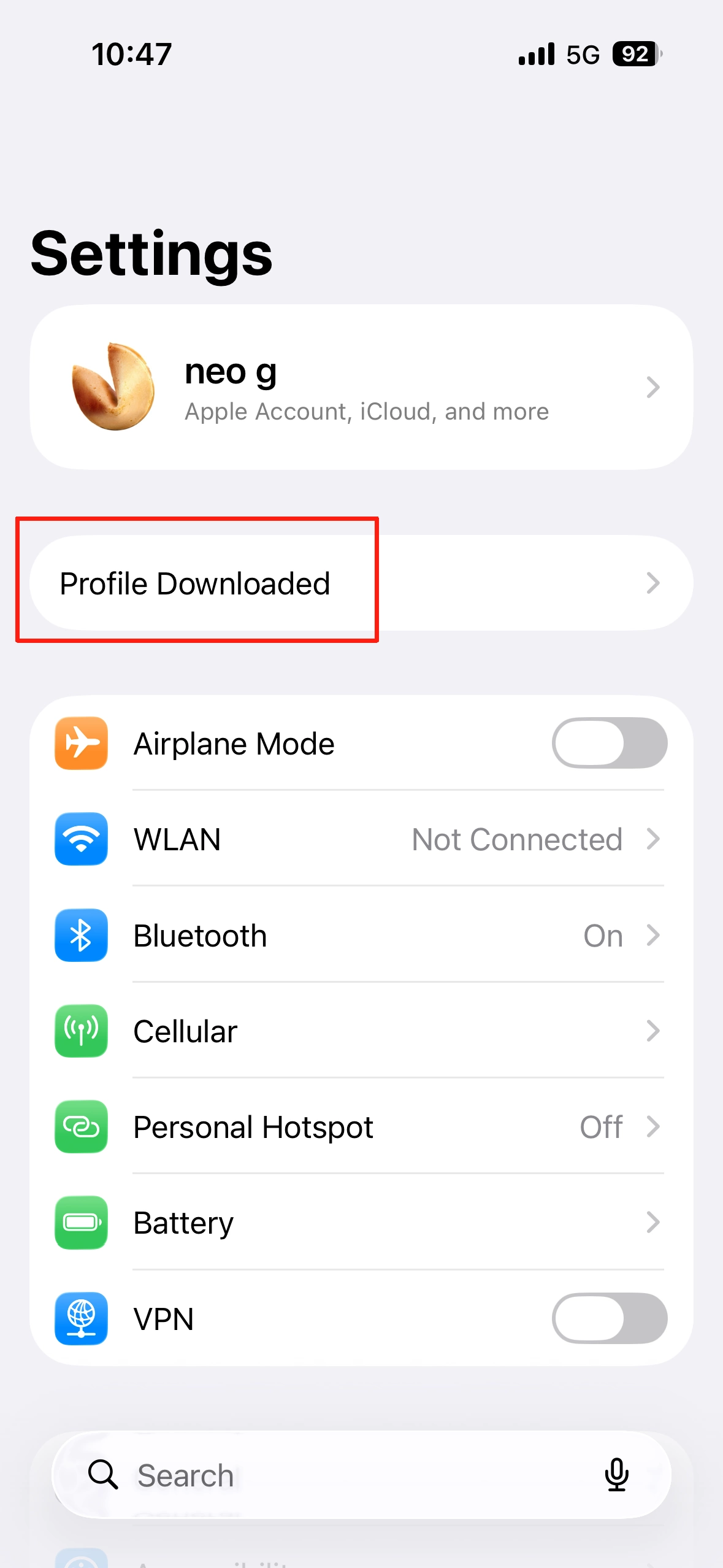
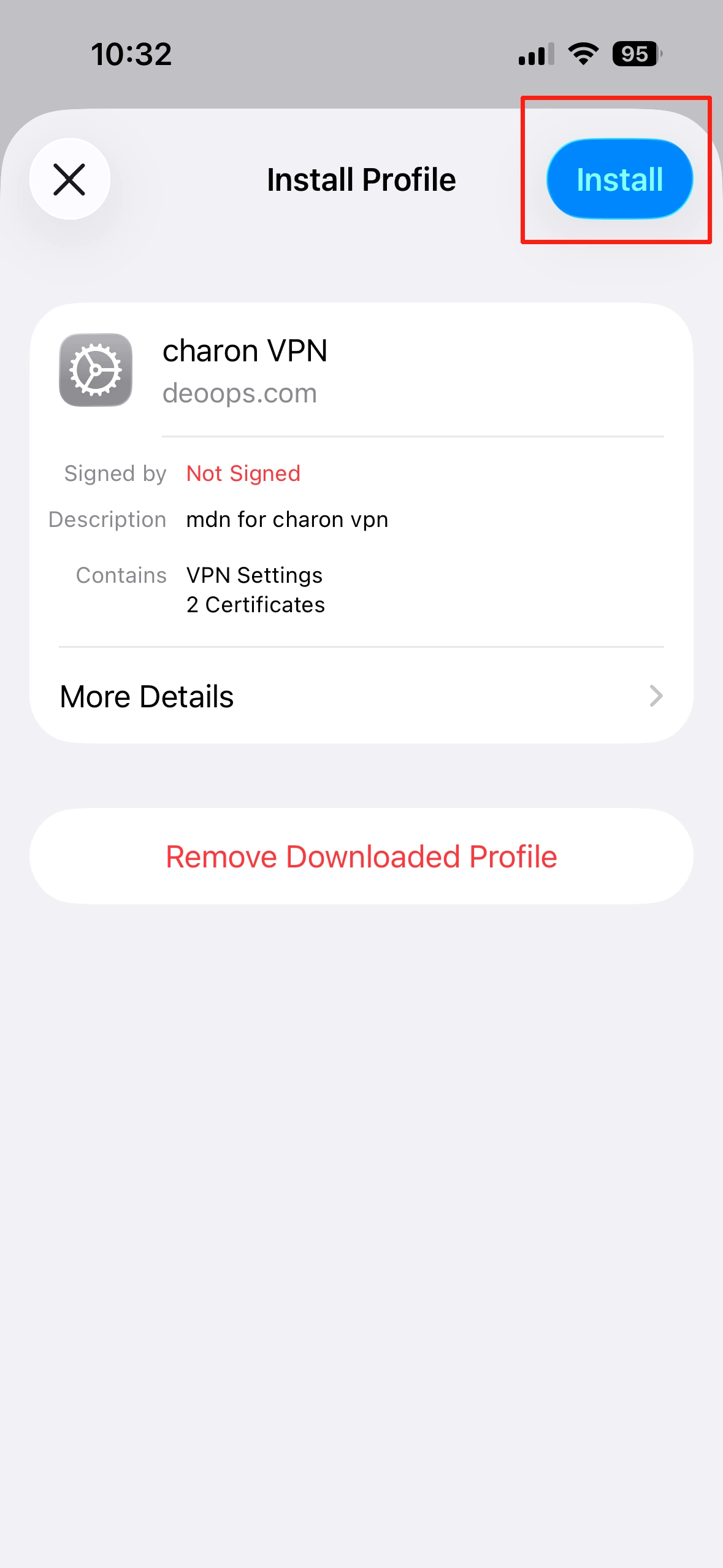
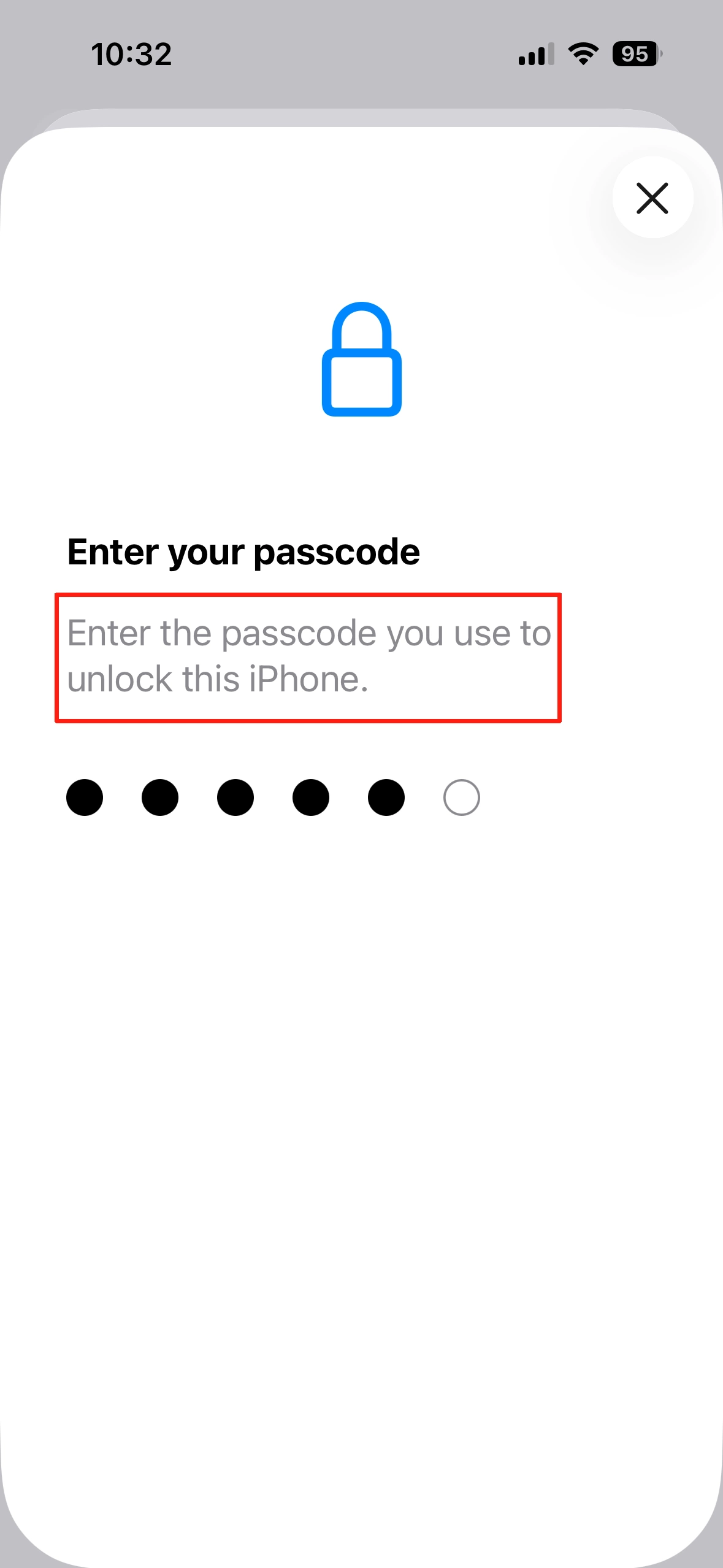
Open Settings, tap 'Profile Downloaded', tap 'Install', and enter your device passcode.
Confirm Warnings
Review and confirm the installation:
- TapInstallon the warning screen
- TapInstallagain on the confirmation overlay
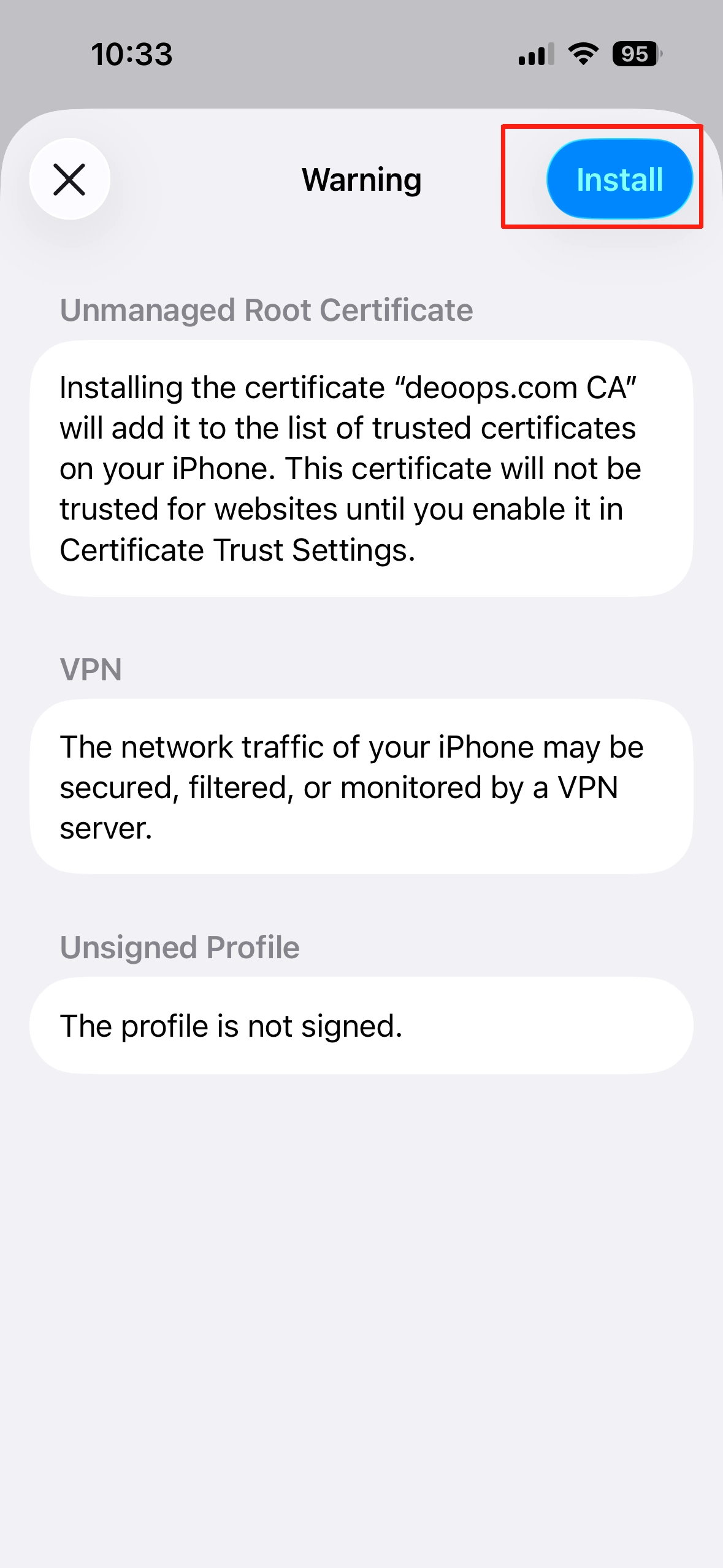
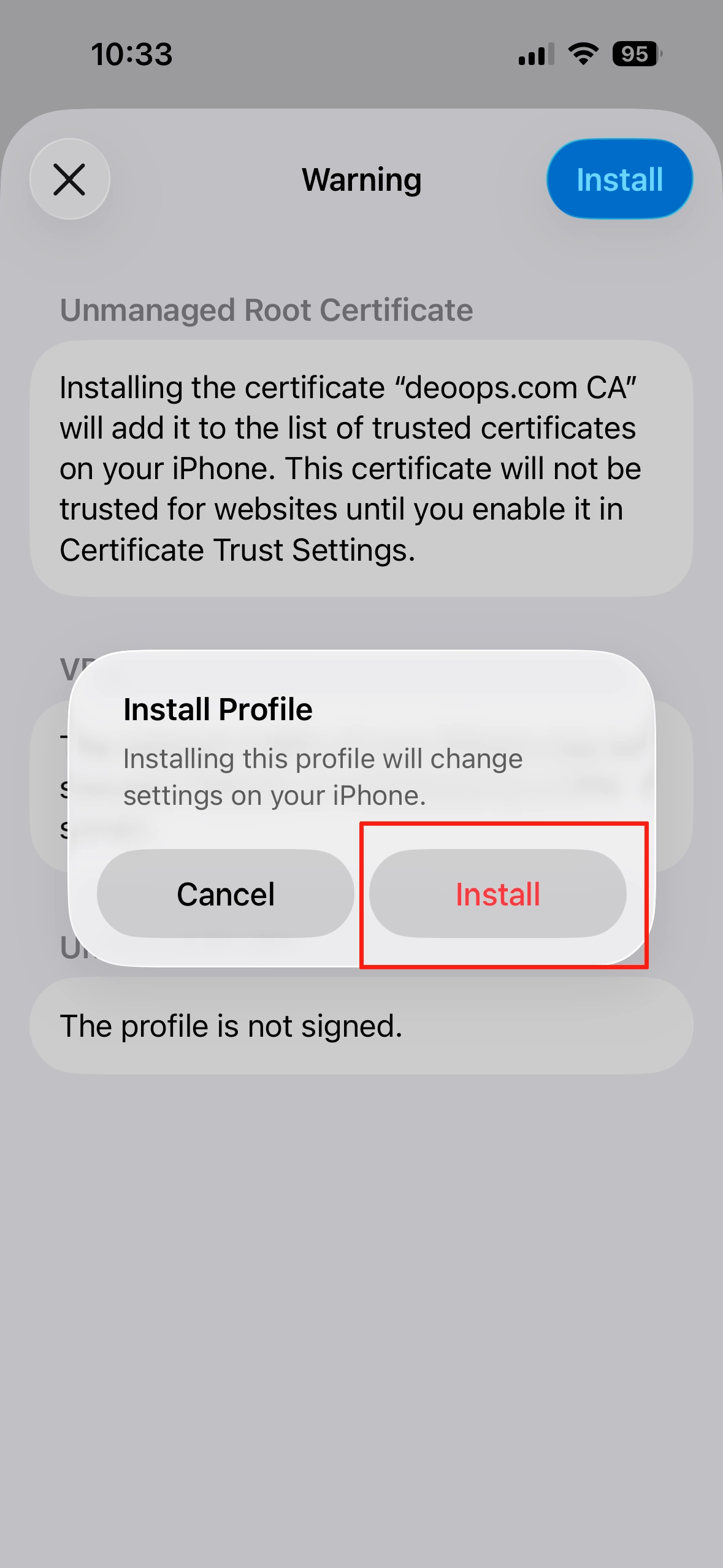
Proceed through the warning prompts by tapping 'Install'.
Certificate Password
Unlock the secure configuration:
- When asked for the P12 Password
- Copy the password from the Profile > VPN section on our website
- Paste it into the prompt and tap Next
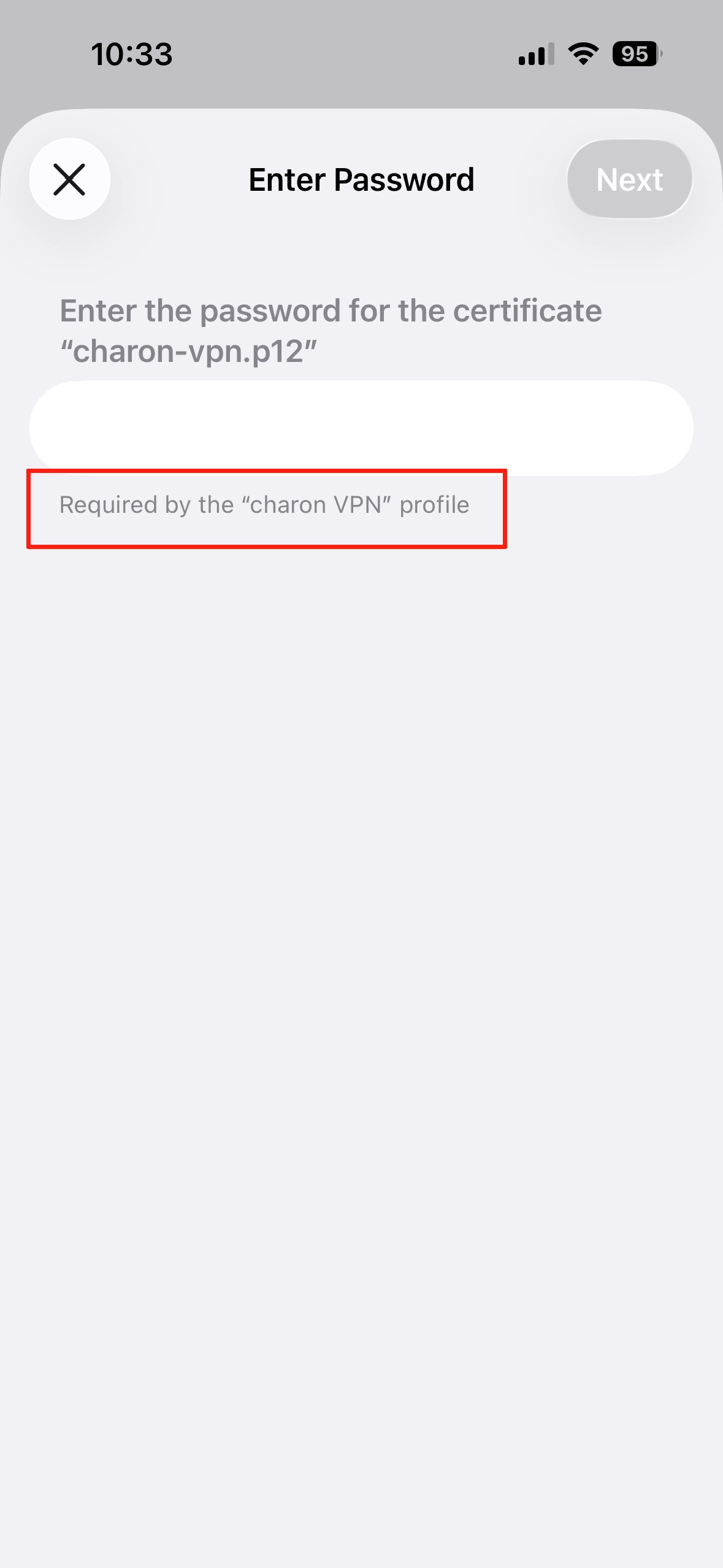
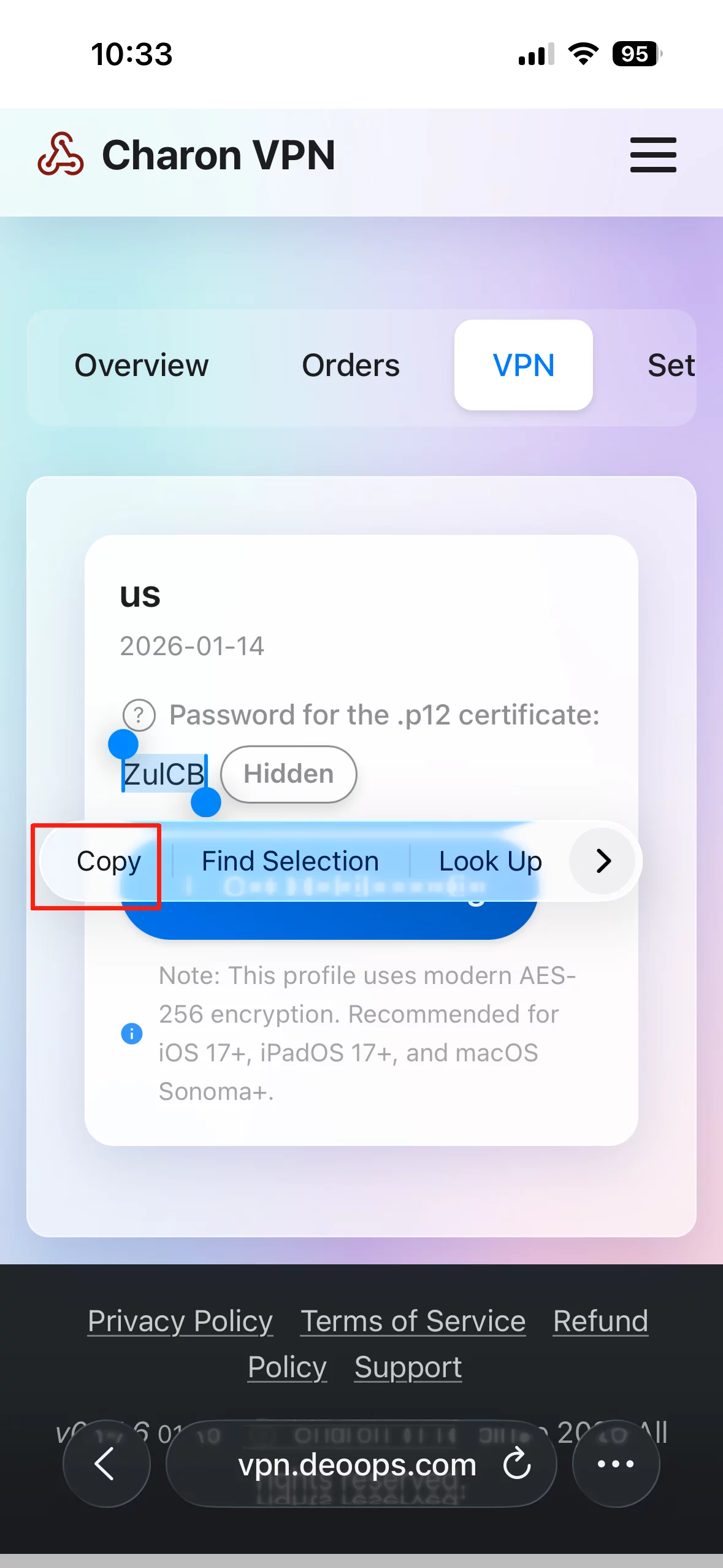
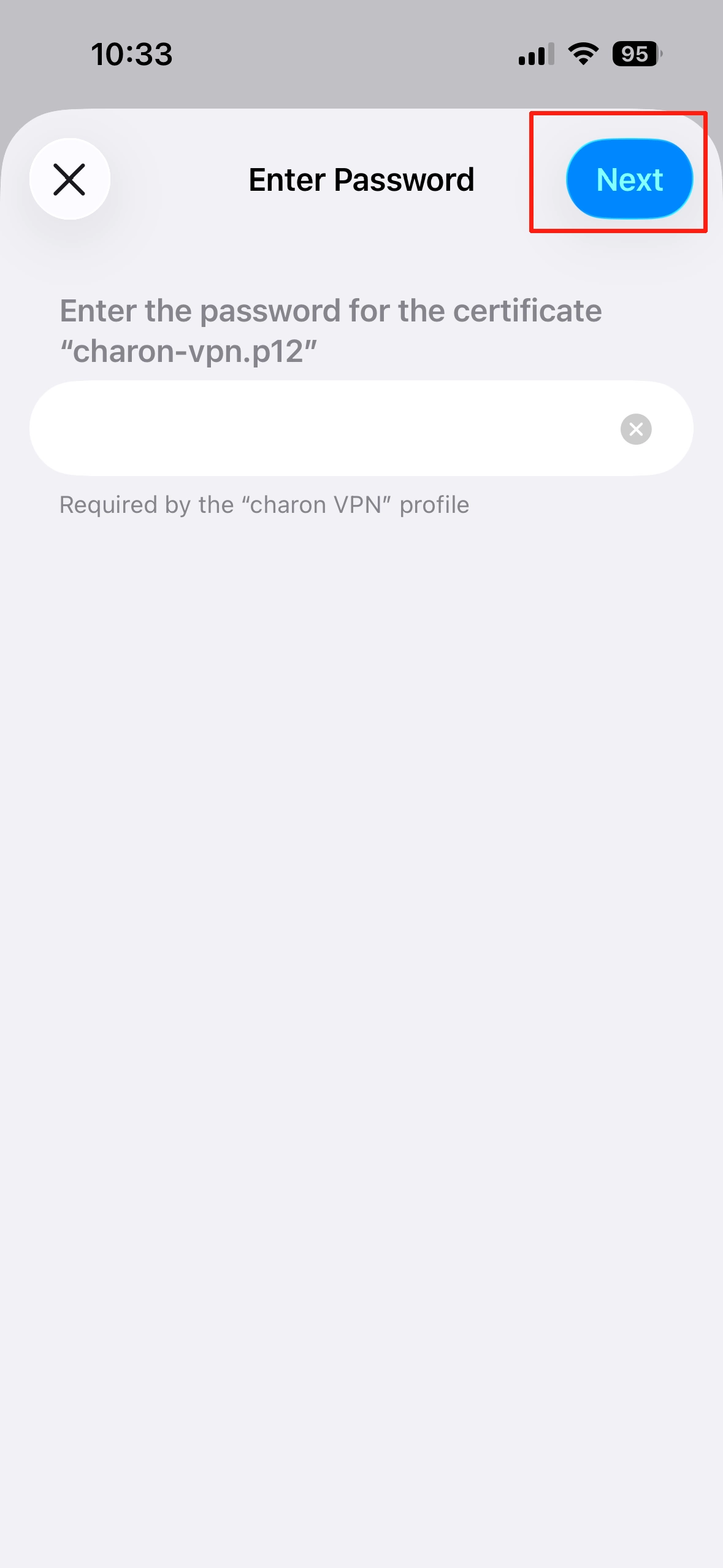
When prompted for the 'P12 Password', copy it from our website (Profile > VPN) and enter it.
Finish & Connect
The profile is now installed:
- TapDoneto finish
- Go toSettings > VPN
- Toggle the switch to Connect
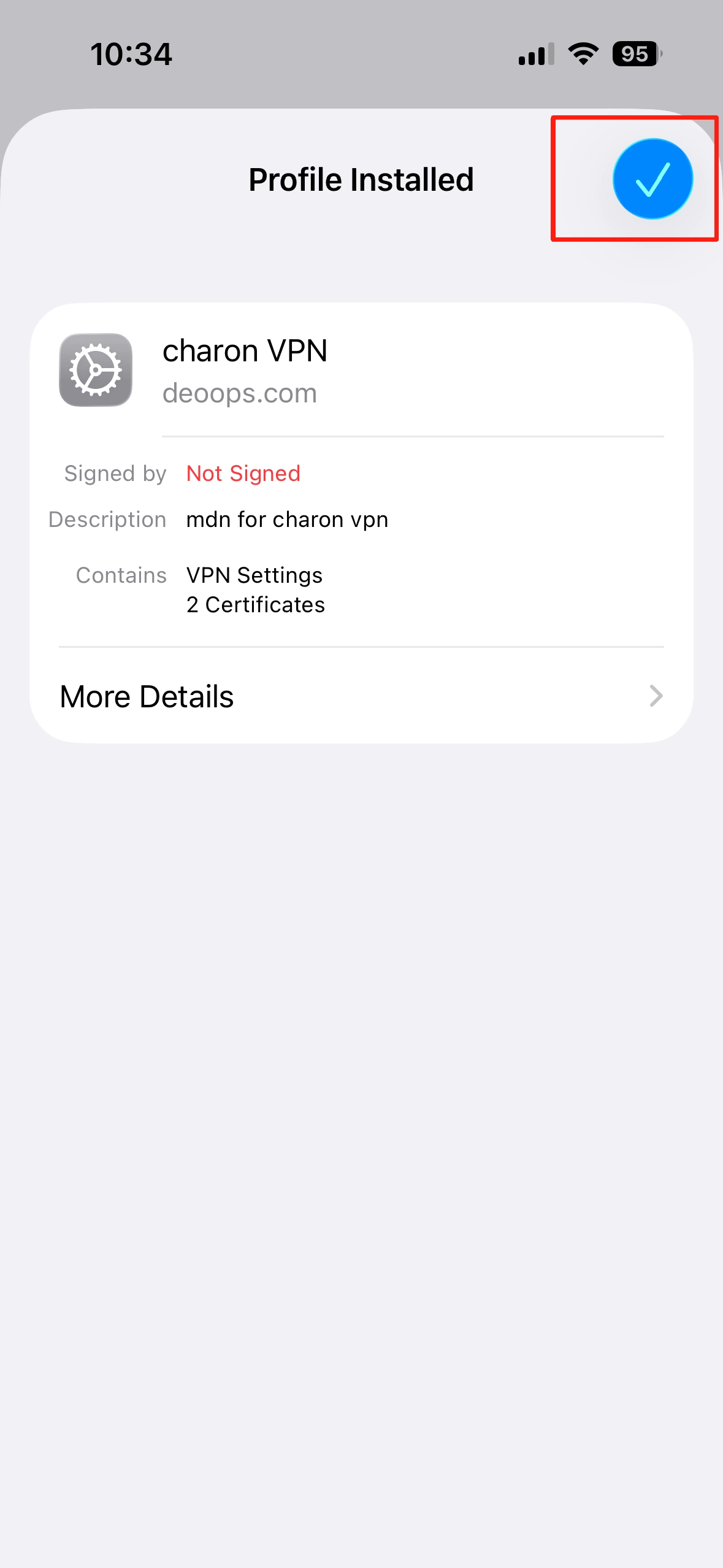
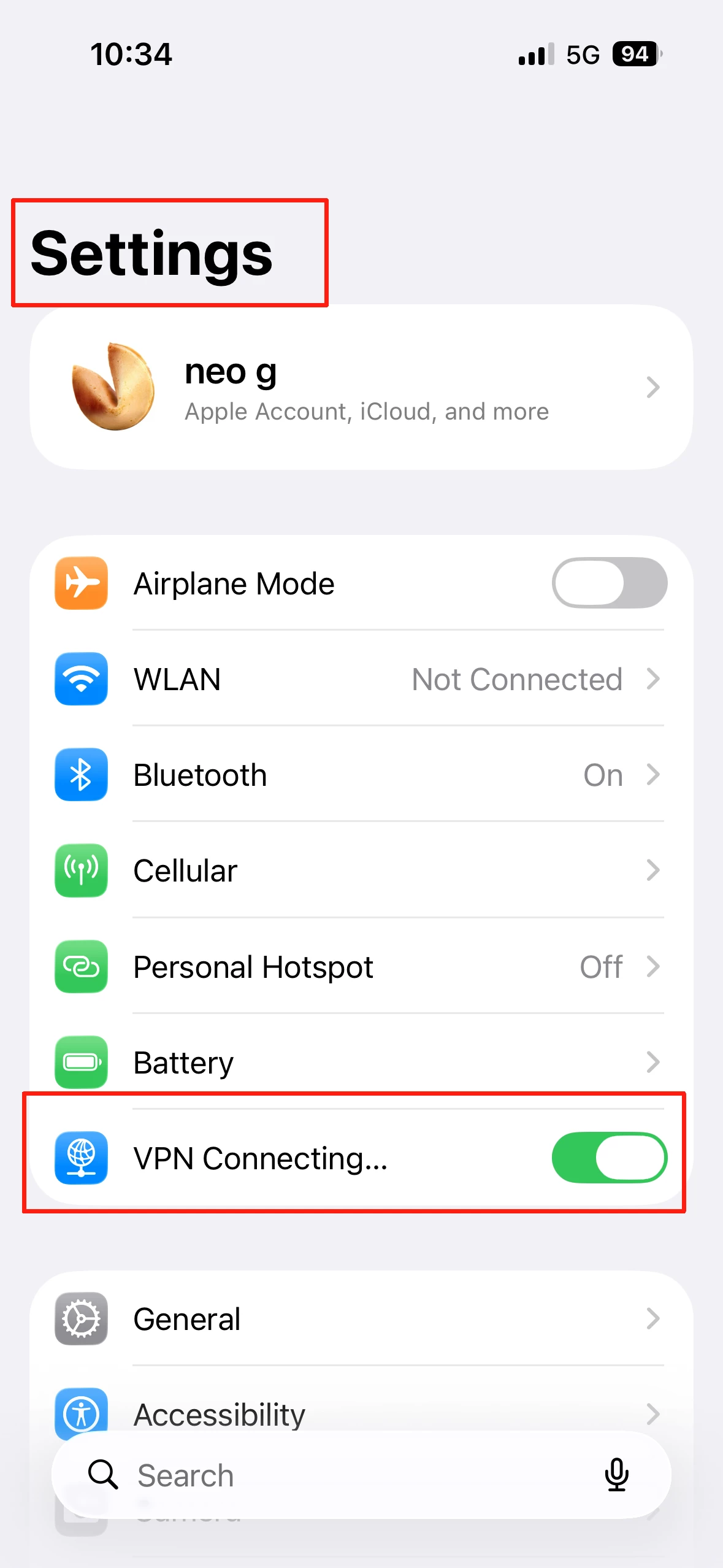
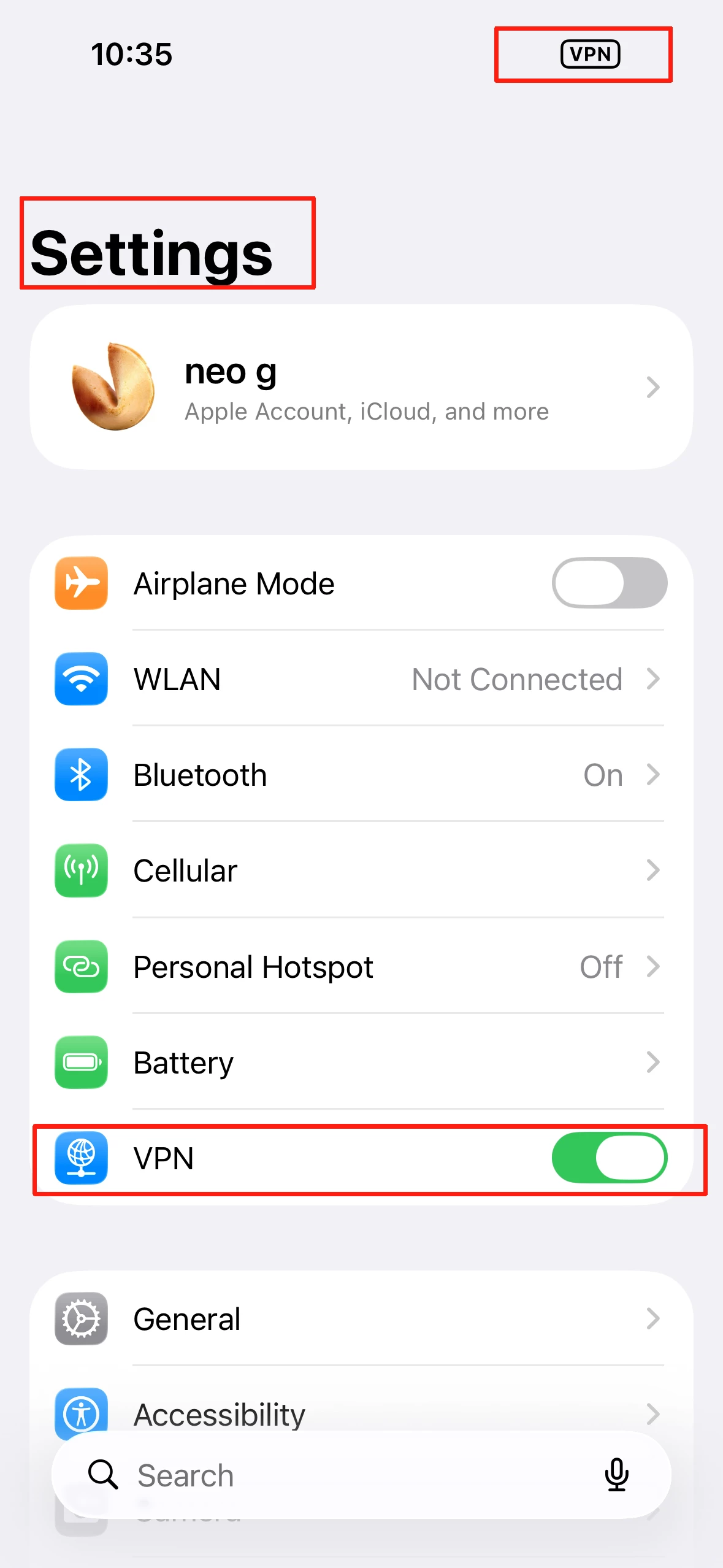
Tap 'Done', then go to Settings > VPN and toggle the switch to connect.
Frequently Asked Questions
When you install our VPN profile, Apple requires you to manually trust the certificate. This is a standard security protocol to ensure your connection is encrypted and private.
This certificate acts as a secure digital handshake between your device and our servers, guaranteeing that your data remains protected from eavesdropping.
After starting your trial or purchasing a plan, your unique configuration file is available for download in yourProfile > VPNtab.
On iOS, once downloaded, the system won't open it automatically. You must go to your device's Settings to complete the installation.
A .p12 (PKCS #12) file is a secure digital container that stores your individual identity certificate. For your security, this certificate is embedded directly inside your .mobileconfig file.
When iOS prompts you for a password during the installation of our profile, it is actually asking to unlock this embedded .p12 certificate to verify your connection.
If you see an 'Invalid Password' error despite entering the correct password (from your Profile page), it likely means your device is running an older version of iOS (older than iOS 17).
Our profiles use modern AES-256 encryption for maximum security. Older devices often only support legacy 3DES encryption, which we do not use. Please update your device to the latest version of iOS/iPadOS.
This is expected behavior on iOS. After tapping download, your device silently receives the profile.
- Open your device's Settings
- Tap the Profile Downloaded banner at the top
- If you don't see it, try downloading the file again from your Profile.
Once connected, you'll see a 'VPN' indicator in the Control Center (swipe down from the top right corner). On older devices, it appears directly in the status bar.
You can also verify your status anytime in Settings > VPN.
To disconnect, simply toggle the switch in Settings > VPN. To completely remove the service, follow our uninstallation guide.